
Shared team inbox
Reference for the Zickt shared team inbox — views, conversation status, filters, sorting, keyboard shortcuts, and the detail sidebar.
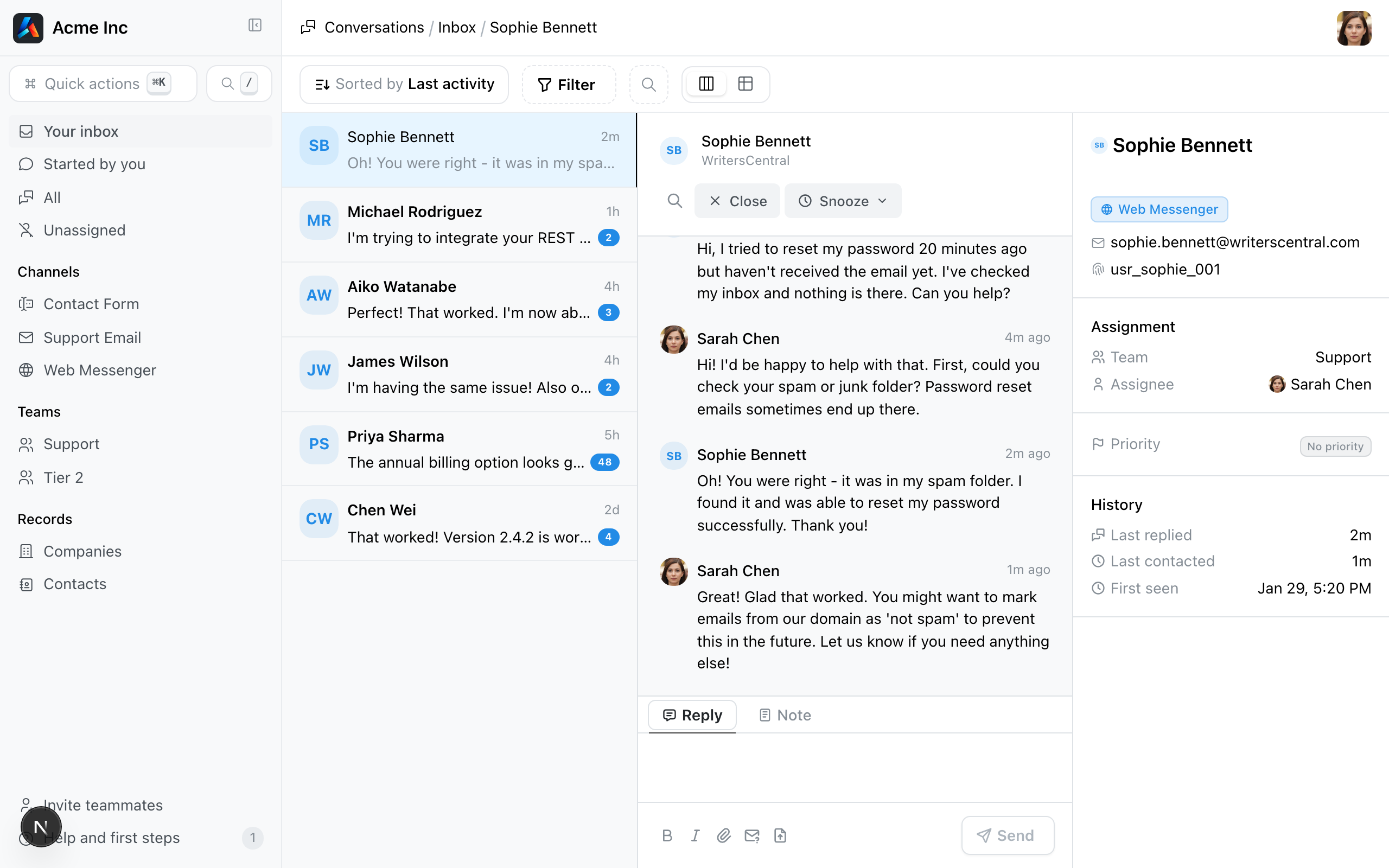
The shared team inbox is the central workspace where agents read and reply to conversations from every connected channel — Email, Live Chat, and Slack. It acts as a unified inbox for customer support, bringing all conversations into a single view regardless of origin. Filtering, sorting, and keyboard shortcuts keep triage fast.
Views
The sidebar provides pre-filtered views of conversations, designed as a shared inbox for teams. Each view applies a default filter so you can find what needs attention fast.
| View | Description | Default status filter |
|---|---|---|
| Your Inbox | Conversations assigned to you | Open (fixed) |
| Started By You | Conversations you initiated | Open |
| All | All workspace conversations | Open (changeable) |
| Unassigned | Conversations with no assignee | Open |
| Channel | Conversations from a specific channel | Open |
| Team | Conversations assigned to a specific team | Open |
Your Inbox always shows open conversations only. Other views default to open but allow you to change the status filter.
Channel and team views are dynamic — they appear in the sidebar based on channels and teams configured in your workspace. Both sections are collapsible.
Layout
The inbox uses a three-panel layout.
| Panel | Content | Width |
|---|---|---|
| Left | Conversation list | Resizable, narrow to medium |
| Middle | Message thread and composer | Flexible, fills remaining space |
| Right | Contact and conversation details | Resizable, narrow to medium |
On smaller screens, the layout collapses to a single column.
Layout modes
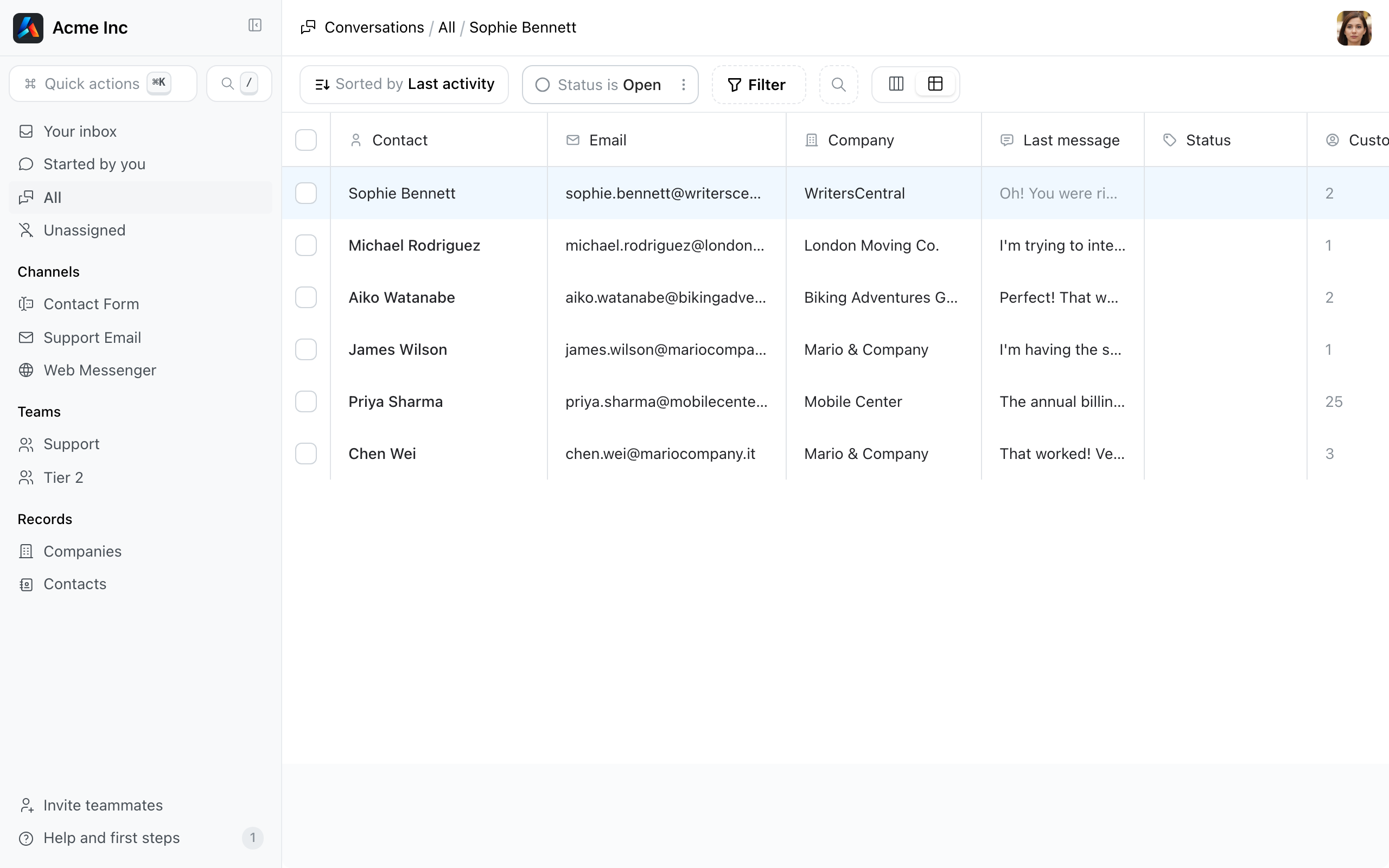
Two modes are available, toggled from the filter header:
- Columns (default) — Three-panel layout with list, thread, and detail sidebar side by side.
- Table — Spreadsheet-style view with sortable columns and bulk selection.
Conversation list
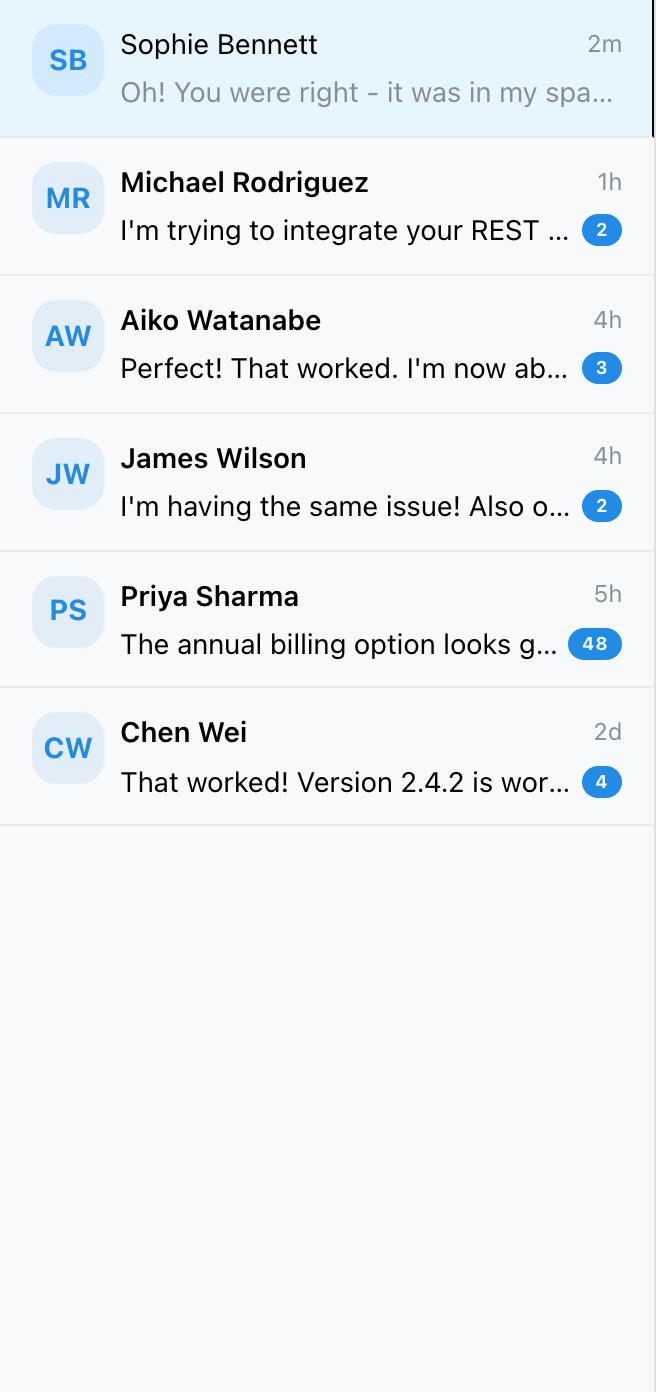
Each conversation in the list displays:
- Contact avatar (initials)
- Contact name (bold when unread)
- Relative timestamp (e.g., "5m", "2h", "3d")
- Last message preview
- Unread count badge
- Tag badges
The list loads 50 conversations at a time and loads more as you scroll down.
Conversation status
Every conversation has one of three states.
| State | Meaning | Transition to | Keyboard shortcut |
|---|---|---|---|
| Open | Active, needs attention | Closed or Snoozed | o (to reopen) |
| Snoozed | Deferred, auto-reopens at scheduled time | Open (when snooze expires or manually reopened) | s |
| Closed | Resolved, no action needed | Open (via reopen) | c |
New conversations default to Open. When a snooze expires, the conversation returns to Open automatically.
Header actions
The conversation header shows contextual actions based on the current state:
- Open conversations — Close button and Snooze dropdown
- Closed or snoozed conversations — Reopen button
- In-conversation search button (all states)

Snooze presets
The snooze dropdown offers five duration presets.
| Option | Duration |
|---|---|
| 1 hour | 1 hour from now |
| 4 hours | 4 hours from now |
| Tomorrow 9am | Next day at 09:00 |
| Next Monday 9am | Next Monday at 09:00 |
| Next week | 7 days from now |
Filters
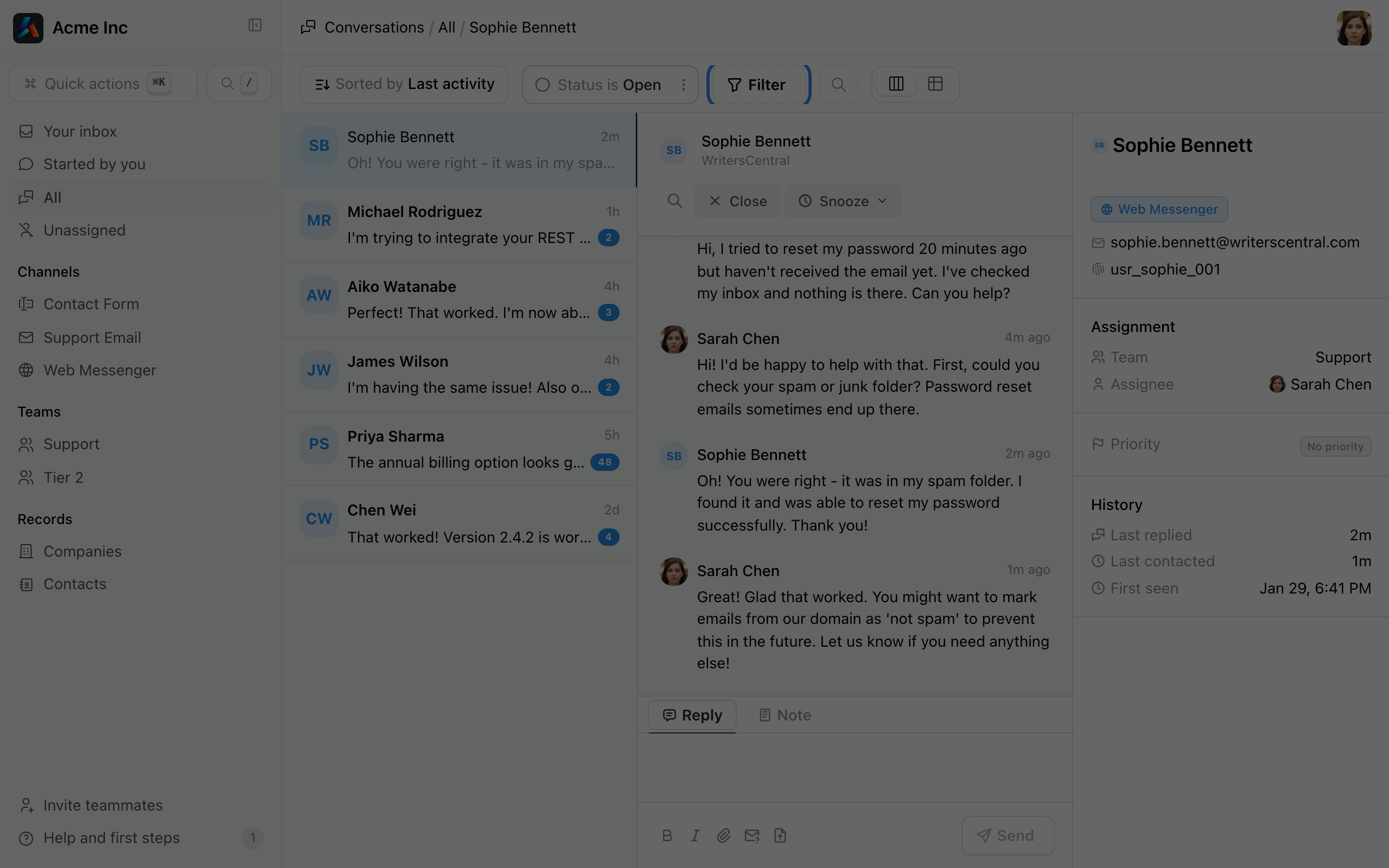
Conversations can be filtered by 11 fields. Active filters display as removable chips in the filter header.
| Filter | Type | Category |
|---|---|---|
| Status | Select (Open, Snoozed, Closed) | Status |
| Assignee | Text | Assignment |
| Team | Text | Assignment |
| Unassigned | Yes/No | Assignment |
| Priority | Select (workspace-defined levels) | Status |
| Tags | Multi-select (workspace tags) | Segmentation |
| Has Unread | Yes/No | Activity |
| Snoozed Until | Date and time | Status |
| Created | Date and time | Dates |
| Updated | Date and time | Dates |
| Closed At | Date and time | Dates |
In-view search
A search button in the filter header lets you filter the current conversation list by text. Type at least 2 characters to start filtering.
Sorting
Conversations can be sorted by any of these fields, in ascending or descending order.
| Sort option |
|---|
| Created |
| Last Updated |
| Last Customer Reply |
| Last Staff Reply |
| Waiting Since |
| Status |
| Priority |
| Unread |
| Assignee |
| Team Assignee |
Detail sidebar
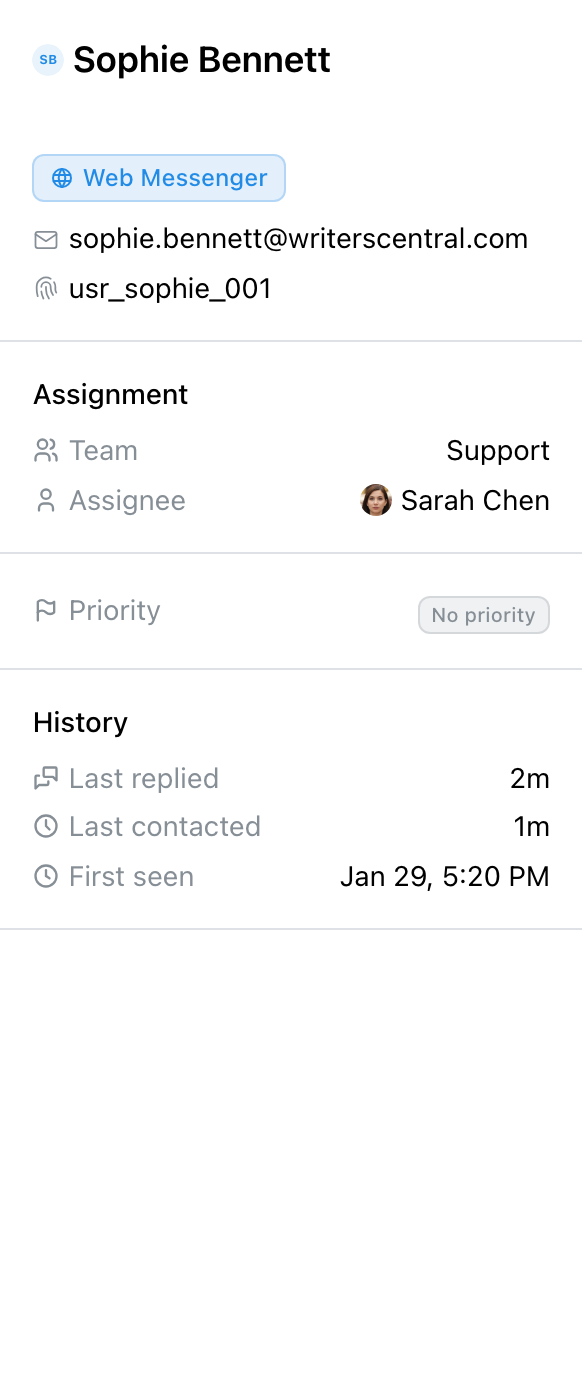
The right panel shows conversation and contact context in the following order.
- Contact info — Name (links to contact profile), local time, location.
- Channel and tags — Channel type badge, contact-level tags.
- Contact details — Email, phone, external ID.
- Assignment — Team assignment (team name and timestamp) and individual assignment (avatar, name, and timestamp). Conversations support both simultaneously.
- Priority — Priority picker with workspace-defined levels.
- Conversation tags — Tags applied to this conversation.
- History — Last replied, last contacted, first seen, latest status event (closed/reopened/snoozed with actor and timestamp), snooze end time if applicable.
- Context — Source channel, browser info (with detailed tooltip), location, local time, initial page URL, referrer. Visible when session data is available.
- Custom attributes — Up to 5 shown by default, expandable.
- Other conversations — Recent conversations from the same contact.
Composer
The reply area at the bottom of the message thread provides:
- Reply tab — Send a message visible to the contact.
- Note tab — Add a private note visible only to agents.
- Rich text formatting (bold, italic).
- Attachment uploads via button or drag-and-drop.
- Snippets for inserting saved reply templates.
- Request contact identifier (email, phone, name) from the contact.
- Request file upload from the contact.
Keyboard shortcuts
These shortcuts are active when a conversation is selected.
| Key | Action |
|---|---|
a | Assign to individual |
Shift+T | Assign to team |
t | Add tag |
Shift+R | Remove tags |
c | Close conversation |
o | Open/reopen conversation |
p | Set priority |
n | Add note |
s | Snooze conversation |
u | Unassign yourself |
Cmd/Ctrl+F | In-conversation search |
Cmd/Ctrl+K | Open quick actions |
Real-time updates
The inbox updates automatically without refreshing the page:
- Typing indicators — Shows who is currently composing a reply.
- Presence — Online/offline status per contact.
- Read tracking — Messages are marked as read when you scroll through them.
- Instant send — Sent messages appear immediately in the thread.
- Live list updates — New conversations, status changes, and assignment changes appear in the conversation list as they happen.
Related
Published pages
- Getting started — Initial workspace setup, leads into the inbox as the day-to-day workspace.
- Web Messenger — Live Chat channel reference; conversations from the chat widget appear in the inbox.
- Email — Email channel reference; inbound emails create inbox conversations.
- Slack — Slack Bidirectional Sync; conversations can be mirrored to Slack threads.
Guides
Planned pages
These pages cover related features and will be linked here when published:
- Routing — Conversation Routing rules, team assignment, and manual reassignment.
- Collaboration — Private Notes and Collision Detection.
- Snippets — Saved reply templates (personal and workspace-level).
- Tagging — Tag management and conversation tagging.
- Search — Conversation search across the workspace.
- Teams — Team management and member configuration.
- Contacts and companies — Contact Profiles and company records.
- Analytics — Conversation Analytics and response time metrics.