Web Messenger
Embed the Zickt live chat widget on your website with one script tag. Covers installation, framework examples, domain security, and widget customization.
The Zickt Web Messenger is a live chat widget that you embed on your website so visitors can start real-time conversations with your team. Messages flow into your shared team inbox alongside conversations from all other channels.
Installation
Add the following script tag to your website, just before the closing </body> tag:
<script src="https://cdn.zickt.com/loader.js" data-channel-key="YOUR_CHANNEL_KEY" async></script>Finding your channel key
Your channel key is available in Settings > Channels > Messenger under the Installation tab. Copy it from the installation snippet shown there.
Framework examples
import Script from 'next/script';

export default function RootLayout({ children }) {
  return (
    <html>
      <body>
        {children}
        <Script
          src="https://cdn.zickt.com/loader.js"
          data-channel-key="YOUR_CHANNEL_KEY"
          strategy="lazyOnload"
        />
      </body>
    </html>
  );
}import { useEffect } from 'react';
function App() {
useEffect(() => {
const script = document.createElement('script');
script.src = 'https://cdn.zickt.com/loader.js';
script.dataset.channelKey = 'YOUR_CHANNEL_KEY';
script.async = true;
document.body.appendChild(script);
}, []);
return <div>Your App</div>;
}<script setup>
import { onMounted } from 'vue';
onMounted(() => {
const script = document.createElement('script');
script.src = 'https://cdn.zickt.com/loader.js';
script.dataset.channelKey = 'YOUR_CHANNEL_KEY';
script.async = true;
document.body.appendChild(script);
});
</script><!DOCTYPE html>
<html>
<head>
<title>My Website</title>
</head>
<body>
<!-- Your content -->
<script
src="https://cdn.zickt.com/loader.js"
data-channel-key="YOUR_CHANNEL_KEY"
async
></script>
</body>
</html>Allowed domains
The chat widget only loads on domains you've approved. This prevents unauthorized use of your channel key on other websites.
Add your domains in Settings > Channels > Messenger under Allowed Domains:
example.com— your production sitestaging.example.com— staging environmentlocalhost:3000— local development
Click Add Domain for each entry.
Customization
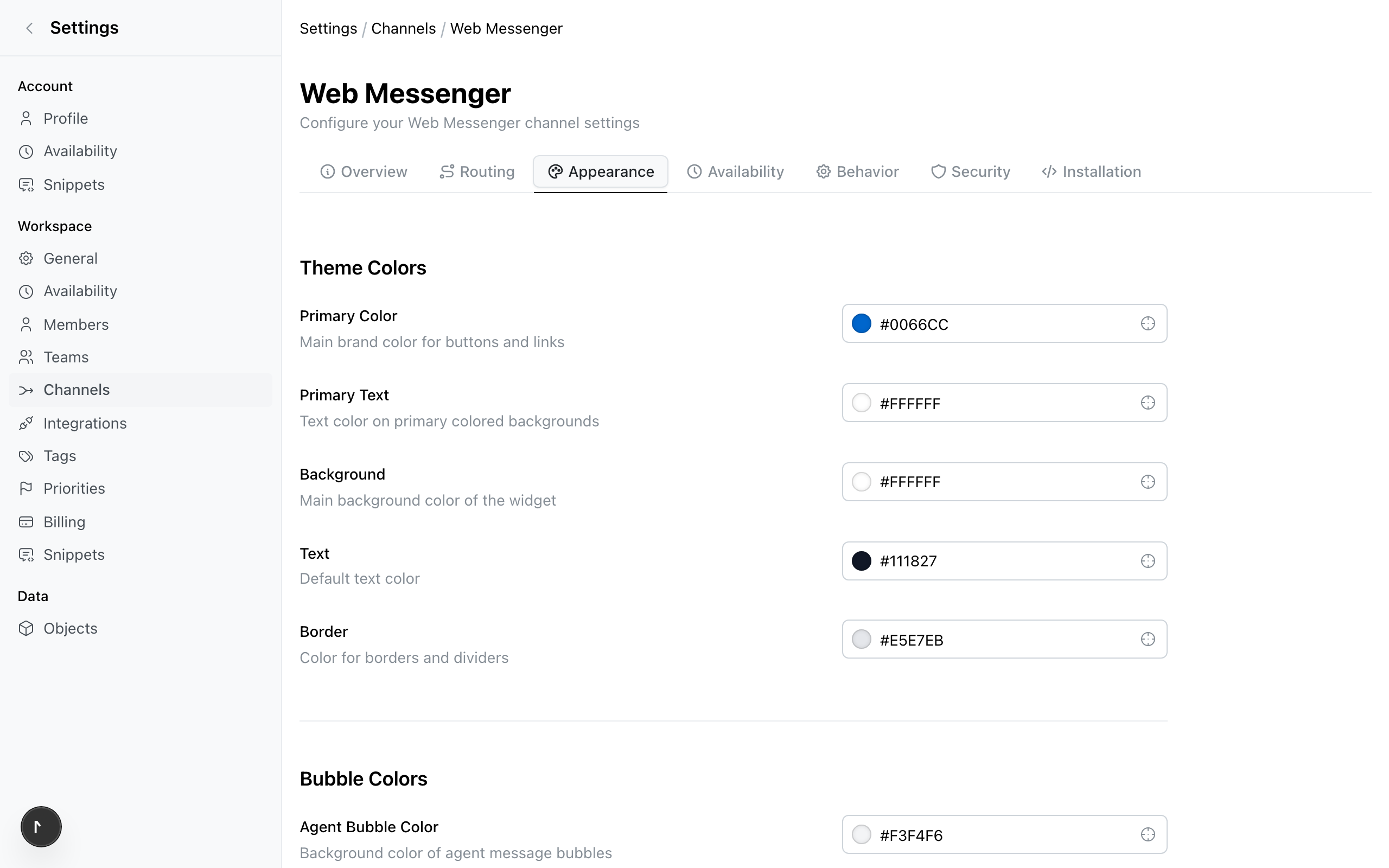
Customize the widget appearance in Settings > Channels > Messenger:
| Option | Description |
|---|---|
| Position | Left or right alignment on the screen |
| Color | Primary color to match your brand |
| Greeting | Welcome message shown to new visitors |